Countdown
From 500 msRun relative to the moment you start the task.
 Smart Clicker
Timing & scheduling
Choose a countdown, a future Exact Time, a recurring schedule, or repeat timing for a selected webpage element.
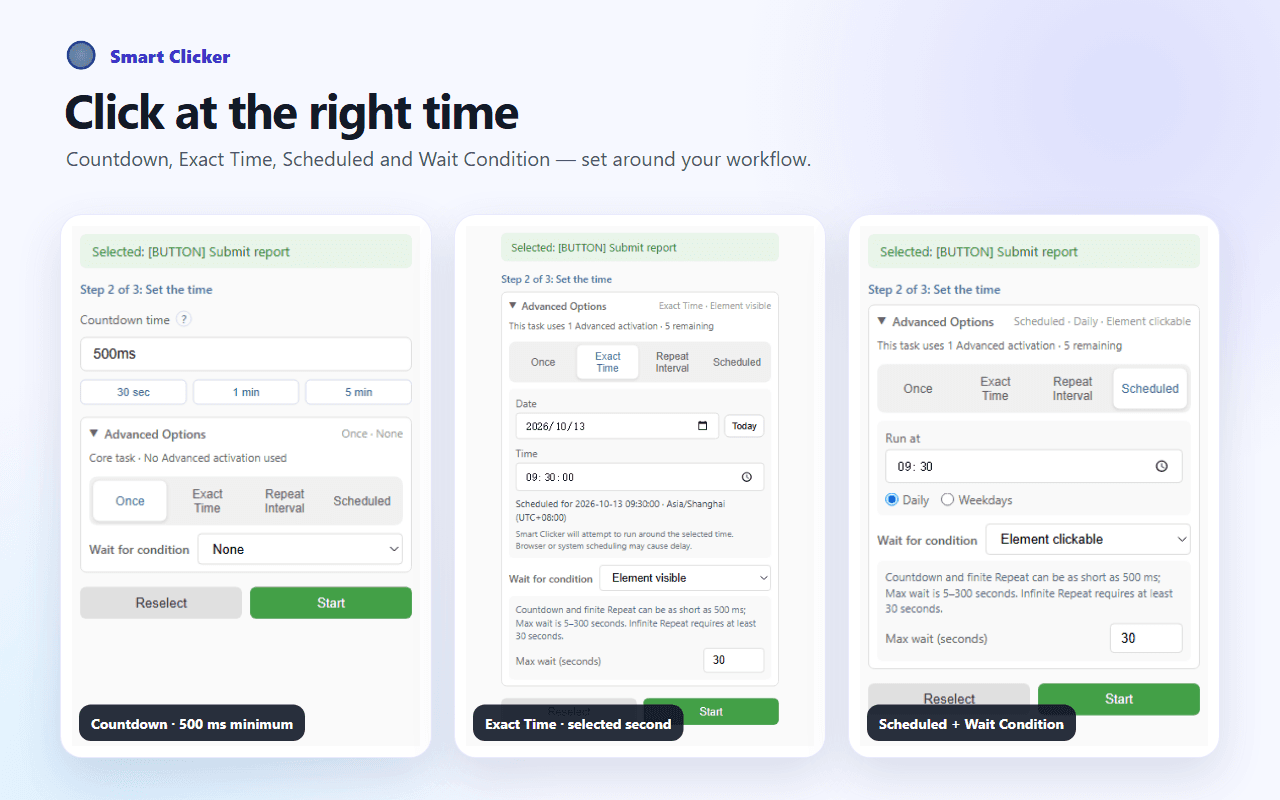
Four timing modes
Start with the mode that matches the job, then keep the browser and target page available for best-effort execution.
Run relative to the moment you start the task.
Choose a future date and time, to the selected second.
Choose a local time for daily or selected-weekday routines.
Repeat for a chosen count or until the task is cancelled.
Countdown & Exact Time
Both modes target the webpage element you selected, but they answer different timing needs.
Start the timer when the task launches and attempt the click after the chosen duration.
Choose a future local date and time for an Advanced task.
Schedules & Repeat
Scheduled chooses the next local occurrence. Repeat controls the number or continuity of click attempts.
Choose a local time and either every day or selected weekdays. The next valid occurrence depends on the current local time.
Choose a repetition count with an interval of at least 500 ms.
Continue with an interval of at least 30 seconds until cancelled or stopped by runtime conditions.
Related control
A Wait Condition can delay an Advanced timing task until the selected element is ready.
Choose a wait range from 5 to 300 seconds. Reaching the timeout does not mean the condition will occur.
Best-effort execution
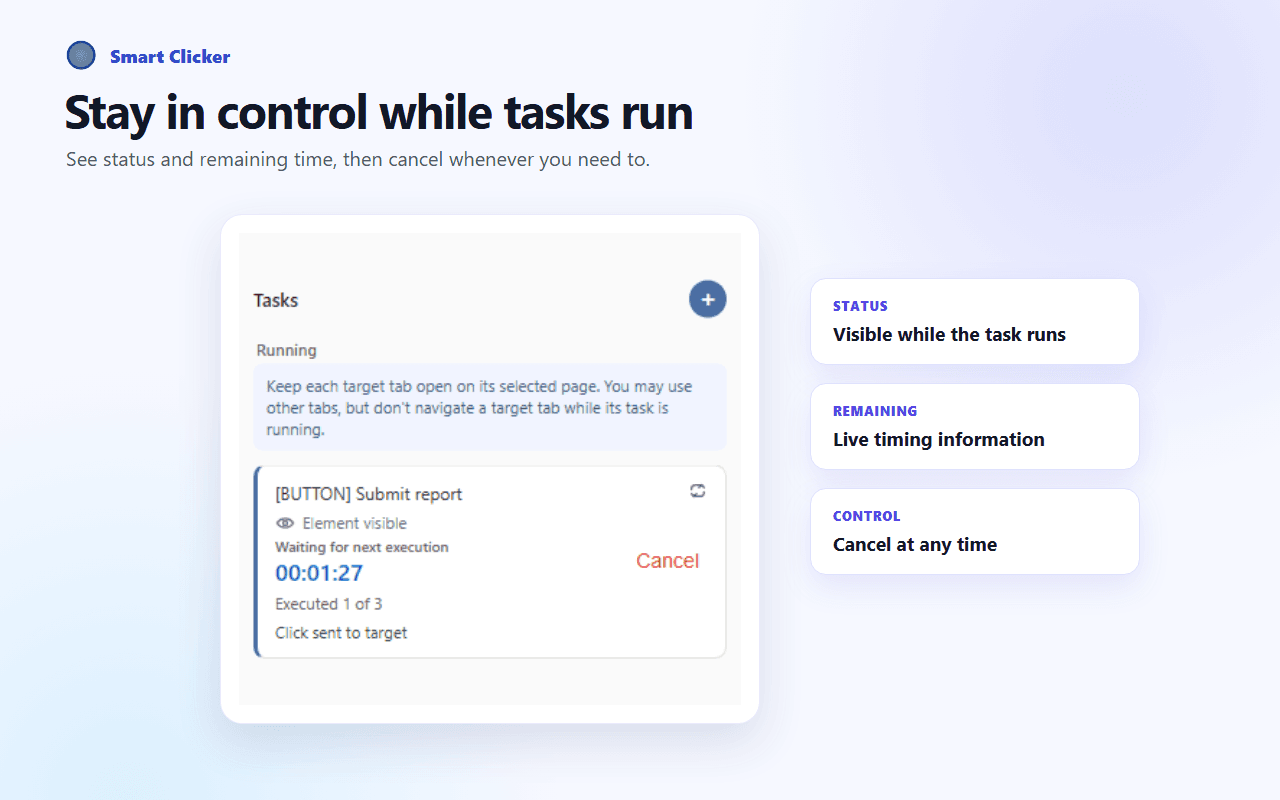
Smart Clicker shows the running task and provides Cancel, but it cannot guarantee execution at an exact time or guarantee a website result.
500 ms. Basic countdown tasks are unlimited on Free, and execution remains best effort.
Choose a future local date and time to the second. Exact Time is Advanced and does not guarantee execution at that exact second.
Yes. Scheduled tasks can run daily or on selected weekdays at a chosen local time.
Finite Repeat uses a chosen count and supports intervals from 500 ms. Infinite Repeat uses intervals of at least 30 seconds and continues until cancelled or stopped.
No. Browser throttling, device sleep, page loading and target availability can delay or prevent execution.
The task may be delayed or may not complete. Smart Clicker does not guarantee background runtime or website outcomes.
Try scheduled clicking
Install Smart Clicker for Chrome or Microsoft Edge and configure the task inside the extension.
Back to Smart Clicker overview →